Find your way back.
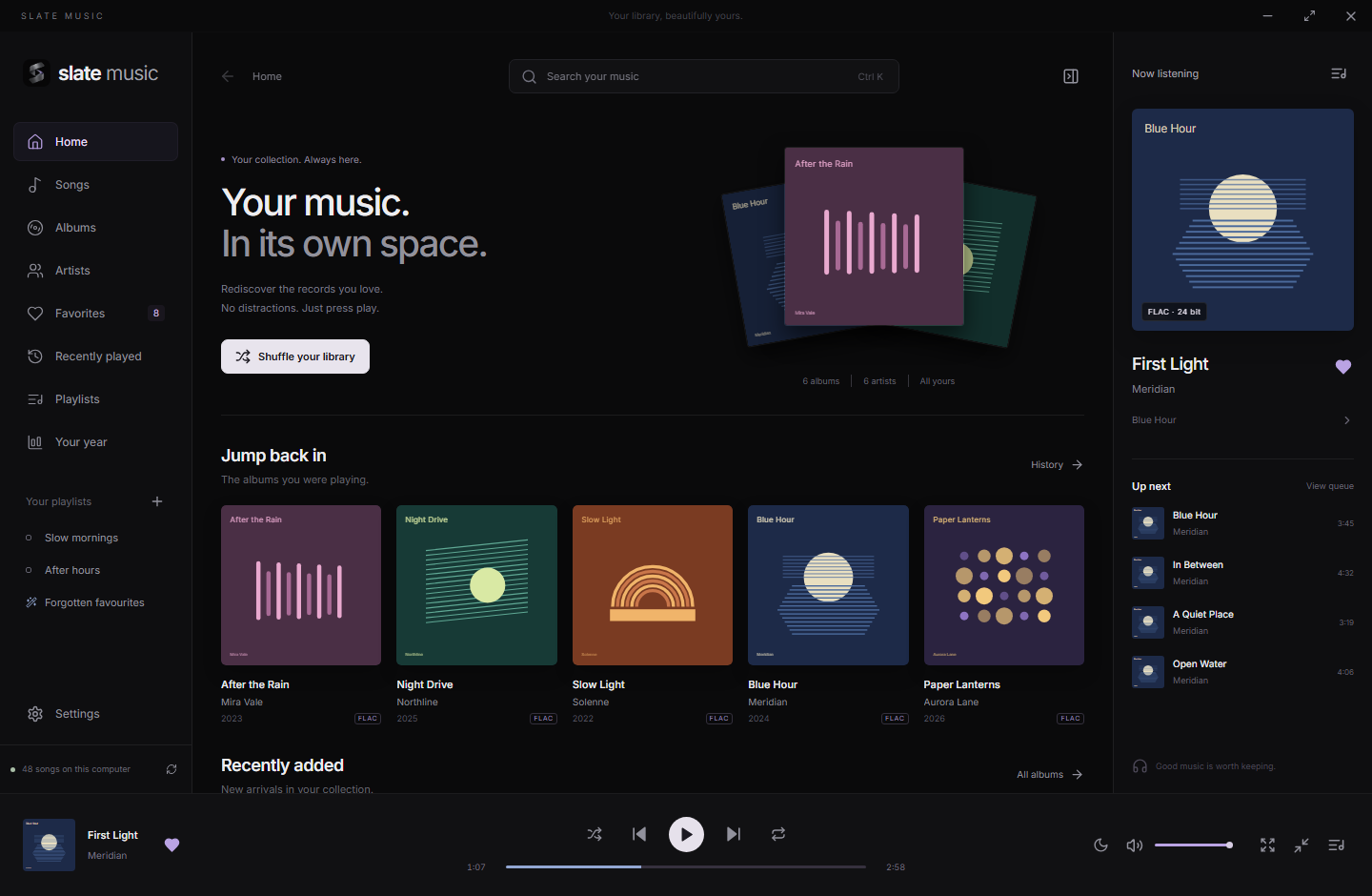
Browse by album or artist, or press Ctrl+K and type a few letters: search forgives typos and finds songs, albums, artists and actions in one place.
 slate music
GitHub
slate music
GitHub
A beautiful home for the records you own. Synced lyrics, bit-perfect sound and a library that keeps up with you.
Download for WindowsWindows 10 / 11 · v1.1.5 · Free & open source
Local by nature. Your library works offline.
Made for listening. Gapless, with room to breathe.
Always yours. Your files stay untouched.
The sleeves, the track order, the song you forgot you loved. Give your collection a place that feels like it belongs.
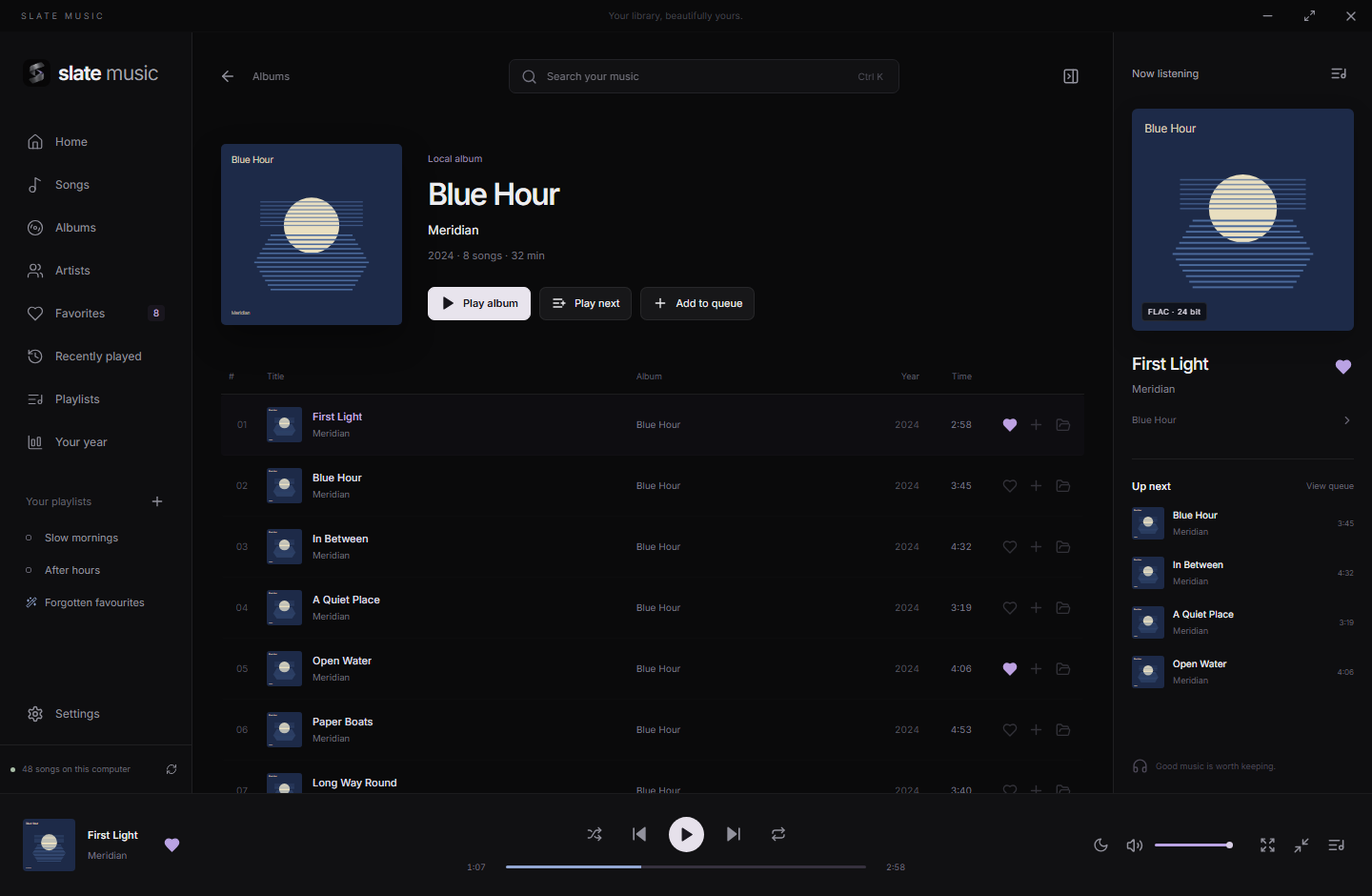 Album view, with a demo record.
Browse by album or artist, or press Ctrl+K and type a few letters: search forgives typos and finds songs, albums, artists and actions in one place.
Gapless playback keeps an album together. Smart crossfades start where the music ends and never fade a song that runs into the next.
Pick several songs, drag them onto a playlist or the queue, and sort any list by its columns. Your queue and place are there when you come back.
Now Playing gives a song the whole window: a large, sharp cover, colours taken from it, and lyrics that follow along.
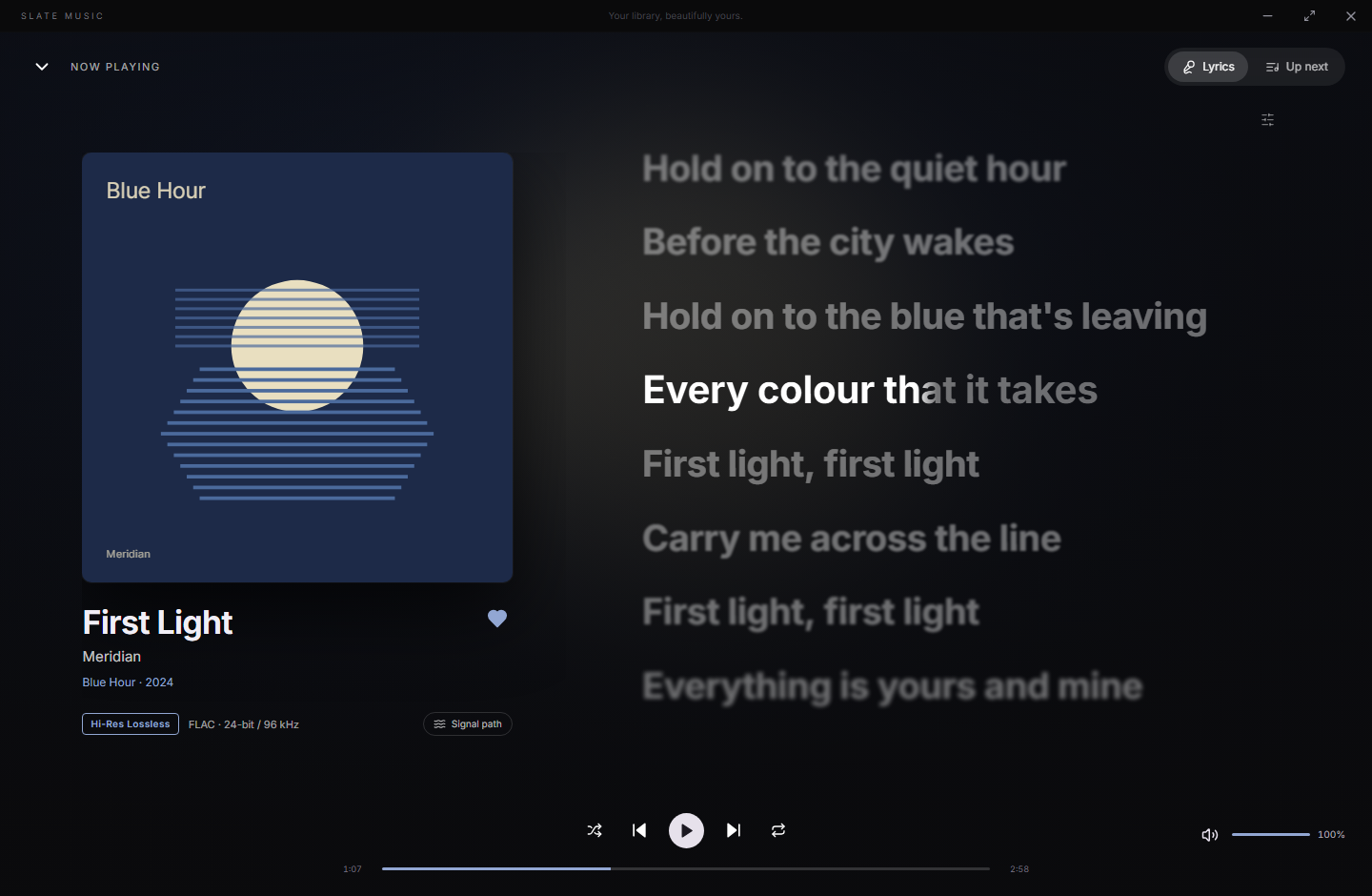
Each word lights up as it is sung when the lyrics carry word times; otherwise the line being sung does. From an .lrc file beside the song, lyrics stored in the file, or the free LRCLIB database. Click a line to jump to it.
The progress bar, playing indicator and backdrop take their colour from the album art. Covers are kept sharp for large screens.
Switch to the queue without leaving the view. Ctrl+L opens it from anywhere; Esc takes you back.
Every step from the file to your speakers is shown, and nothing changes the sound unless you ask it to.
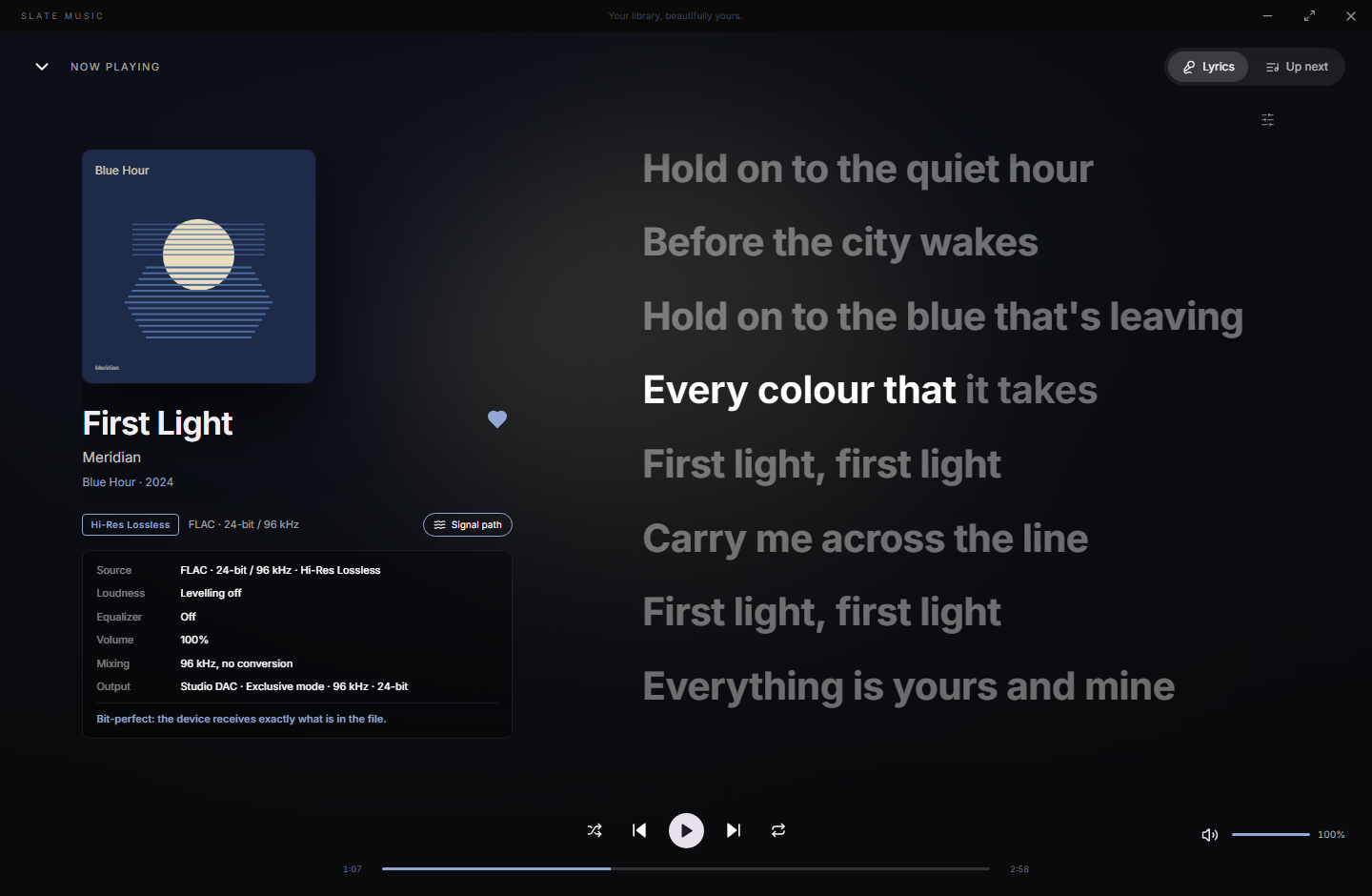
Exclusive mode sends each song at its own sample rate, with no Windows mixing or resampling. The signal path says when the device gets exactly what is in the file.
Loudness levelling measures every song once (EBU R128, or the file's ReplayGain) and keeps albums as they were mastered.
A 10-band equalizer with presets, remembered for each output device. Plug your headphones back in and the music follows them.
Worked out from what you play on this PC. Nothing leaves it unless you choose.
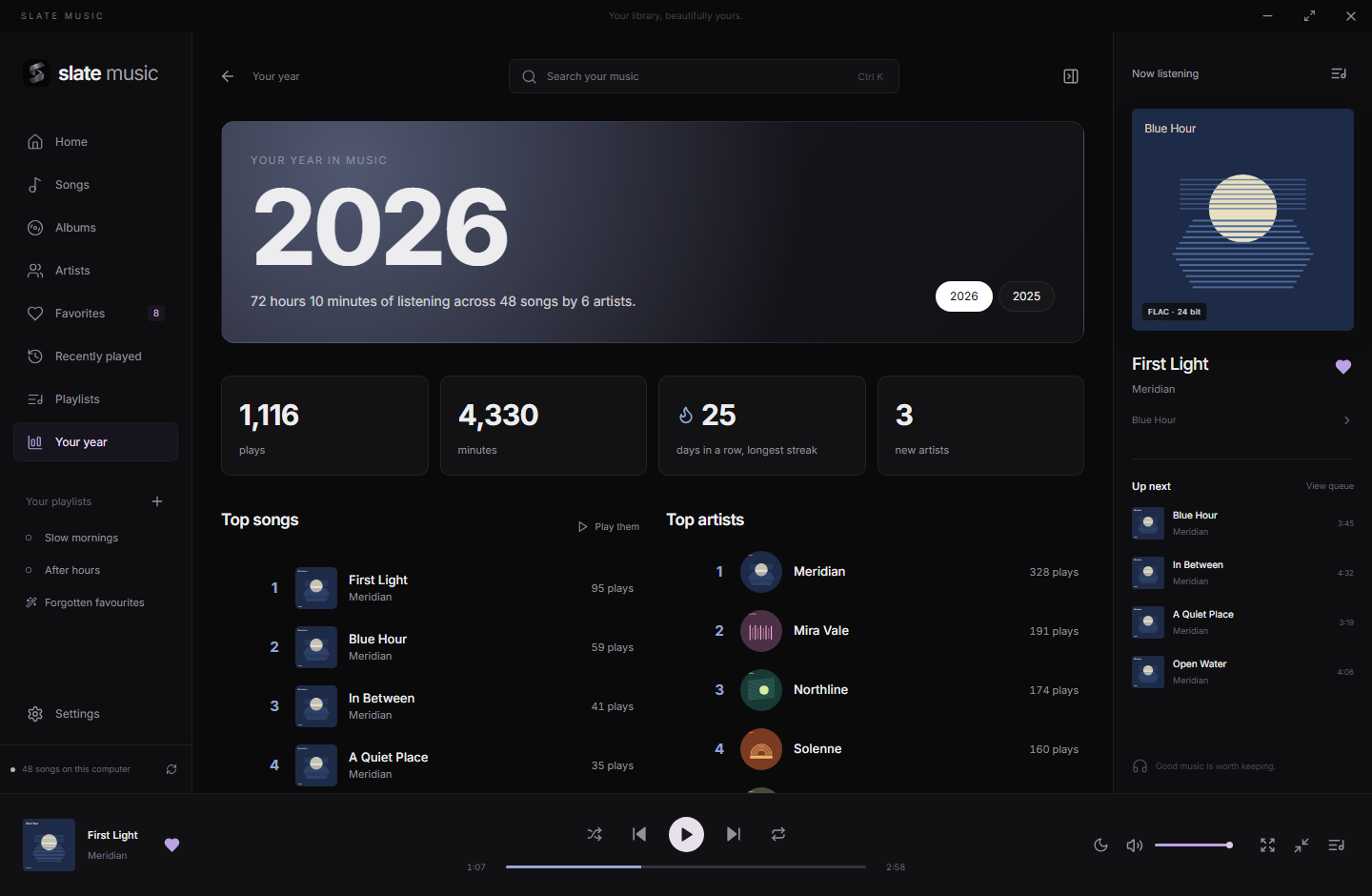
Plays, minutes, your longest streak, new artists, and your top songs, artists and albums. Home brings back what you were playing and favourites you forgot.
Build playlists from rules, such as favourites you haven't played in months or songs from the 80s, and they keep themselves up to date.
Scrobble to Last.fm, and let Discord show what you're listening to. Both are off until you switch them on.
Keyboard shortcuts, a command bar, Windows media and taskbar controls, and a mini-player that stays out of the way.
Watched folders, quick rescans, moved songs recognized with their plays and favorites, and covers found beside your files.
No player account. No analytics. Local playback and organization work without a connection.
Pick one of your Spotify playlists, your Liked Songs or your top songs. Slate Music looks for the matching recordings in your local library, keeping Spotify's order.
Review uncertain matches, correct versions, and save the playlist. It can update itself from Spotify each time you open the app. Missing songs stay visible and out of the playable queue.
Read the connection guideMetadata matching only. No Spotify audio downloads. Connecting requires your own Spotify developer app and an eligible account.
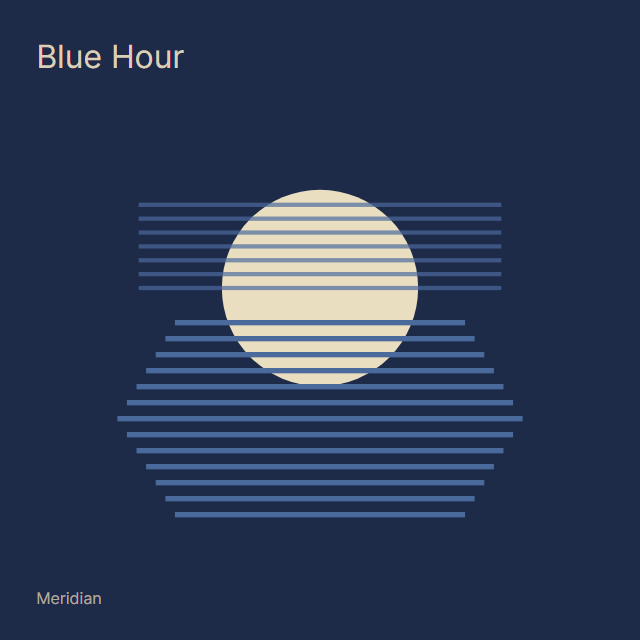
Meridian
Album order, preservedA few moments to set up.
Your collection takes it from there.
Download the Windows x64 installer, run it, then open Slate Music from Start.
Slate reads your tags and album artwork. Your music files and folders stay exactly as they are.
Build your queue, save your favorites, or let shuffle find something you haven’t heard in a while.
The useful details.
FLAC, MP3, WAV, AAC/M4A, ALAC, Ogg Vorbis, Opus and AIFF have been tested. Raw AAC has limited seeking support. WMA, APE, DSD and protected files are not supported.
Music plays through Windows at 48 kHz stereo, or, with exclusive mode on, at each song's own sample rate with nothing changed on the way (bit-perfect). See audio details.
Yes. Playback, search, playlists, lyrics files and your saved library work offline. Songs without lyrics of their own are looked up online unless you switch that off in Settings. Other features that go online are optional: Spotify import, original years, artist photos, Last.fm and update checks. Each can be switched off in Settings.
Nothing, until you switch on the Discord status in Settings. Then the Discord app on your PC shows "Listening to Slate Music" with the album cover, song and artist while music plays. The status goes only to that app and needs no Discord setup; to find the cover, the album and artist name are looked up in Apple's iTunes catalogue, Deezer's or MusicBrainz, which you can switch off.
No. Slate Music reads your files and stores its own library database separately. It does not retag, move, rename or delete your music. Playlists, favorites and virtual albums live in Slate’s database.
Windows 10 or 11, a 64-bit x64 PC, WebView2 and a working audio output. WebView2 is usually already installed; setting it up on a new PC may need internet.
The installer does not currently have a Windows Authenticode publisher certificate, so Windows may show an unknown-publisher warning. Download only from the official GitHub release.
Updates are checked and downloaded automatically by default. Update files and their version are verified cryptographically. Installation requires confirmation while paused, or your choice to install on exit. Your library and settings are preserved.
Yes. Slate Music is free and open source under the MIT license. No Slate account or subscription is needed. Spotify controls eligibility for its optional metadata API; see the Spotify setup guide.
For Windows 10 / 11. Yours to enjoy.
Release notes & all downloads